
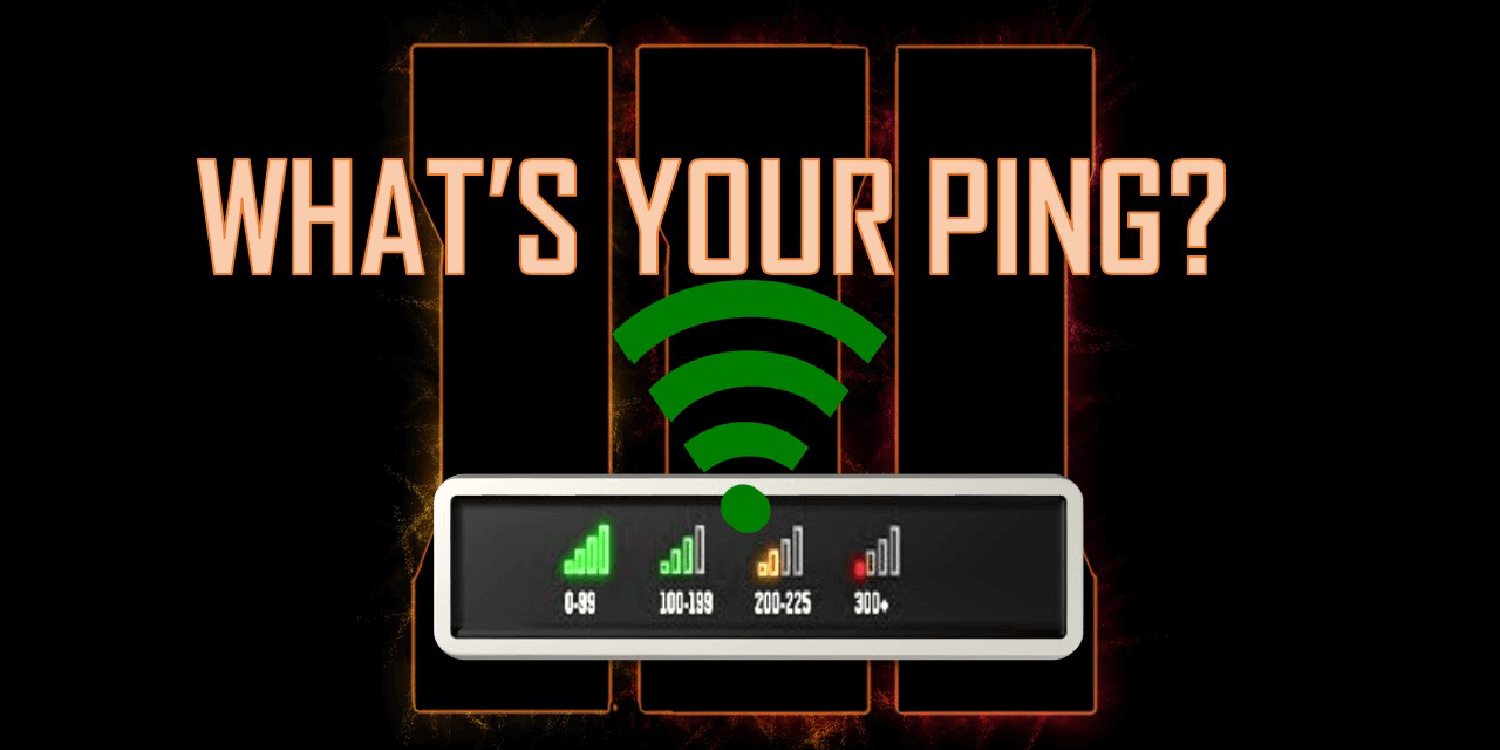
TL;DR — How to Lower Ping Fast
Last updated: March 2026. The most effective ways to lower ping: (1) switch to a wired ethernet connection, (2) close background apps consuming bandwidth, (3) connect to the nearest game server, (4) update or upgrade your router, and (5) use a gaming proxy to bypass inefficient ISP routing to game server data centers.
Target ping by game type:
- Competitive FPS / Battle Royale: under 30ms
- MMORPG / Strategy: under 80ms
- Casual multiplayer: under 120ms
What Is Ping and Why Does It Affect Gaming?
Ping (measured in milliseconds, ms) is the round-trip time for a data packet to travel from your device to a game server and back. It is the most critical metric for online gaming performance.
Low ping (under 50ms): Inputs register immediately. Your character moves when you tell it to. Bullets hit where you aim.
High ping (100ms+): You experience lag — your character teleports, shots register late, and the game feels unresponsive. In competitive games, a 100ms ping disadvantage is equivalent to reacting a tenth of a second slower than your opponent on every single action.
Factors That Determine Your Ping
| Factor | Impact | Fixable? | |--------|--------|---------| | Physical distance to game server | High | Partially (choose closer server) | | ISP routing inefficiency | High | Yes (gaming proxy) | | Wi-Fi vs ethernet | High | Yes (use ethernet) | | Router quality and settings | Medium | Yes (upgrade/configure) | | Background bandwidth usage | Medium | Yes (close apps + QoS) | | ISP throttling | Medium | Yes (proxy/VPN) | | ISP infrastructure quality | Medium | Partially (change ISP) | | Time of day (network congestion) | Low-Medium | Partially (play off-peak) |
Method 1: Switch from Wi-Fi to Ethernet
The single highest-impact change most gamers can make. Wi-Fi adds 5–30ms of latency and introduces instability from interference — walls, other devices, microwave ovens, and neighboring networks all degrade signal.
What you need:
- Cat6 ethernet cable (under $15 for a 10-metre run)
- Ethernet port on your device (use USB-to-ethernet adapter if needed)
Expected improvement: 10–40ms ping reduction plus dramatically reduced jitter (ping stability). In a side-by-side test, a wired connection on the same router typically beats Wi-Fi by 15–30ms.
Method 2: Close All Background Applications
Background processes silently consume your bandwidth, forcing your game to compete for the same internet connection.
High-bandwidth culprits:
- Windows Update / macOS Software Update
- Steam, Epic Games, or other platform updates
- Dropbox, Google Drive, OneDrive cloud sync
- Streaming services (Netflix, YouTube in browser)
- Torrents and peer-to-peer applications
- Browser tabs with video or live content
Quick fix: Before gaming, open Task Manager (Ctrl + Shift + Esc) → Network column → sort by network usage → kill anything that isn't the game.
Advanced fix: Enable QoS (Quality of Service) on your router to automatically prioritize gaming traffic over all other traffic on your network. Look for this setting in your router admin panel (usually 192.168.1.1).
Method 3: Use a Gaming Proxy for Better Server Routing
Your ISP does not route your traffic directly to the game server's data center. Instead, it passes through multiple intermediate routers (hops), and the route chosen is optimized for cost — not latency.
A gaming proxy routes your connection through a data center server geographically closer to the game server, bypassing your ISP's inefficient routing path.
When a proxy helps most:
- You are connecting to game servers in a different country or region
- Your ISP has known routing issues to specific data centers
- You are getting high ping during peak hours (ISP congestion)
- You play region-locked games where local servers are unavailable
LimeProxies datacenter proxies are available in 50+ locations with consistently low latency, making them ideal for routing gaming traffic efficiently:
- Datacenter proxies — low latency, high stability
- Private proxies — dedicated IPs, no shared bandwidth
- SOCKS5 proxies — full protocol support including UDP (used by many games)
Pro tip: SOCKS5 proxies support UDP traffic, which most games use. Standard HTTP proxies only handle TCP, making SOCKS5 the correct proxy type for gaming.
Method 4: Connect to the Nearest Game Server
Always choose the game server region closest to your physical location. This is non-negotiable — geographic distance is physics, and no amount of software tweaking overrides it.
In-game server selection tips:
- Most games display ping to each available region before you connect — always pick the lowest
- Avoid cross-continental servers (NA ↔ EU = 80–120ms unavoidable baseline)
- For games without server selection, use a gaming proxy in a location near the game's data center
Common game server locations: | Game | Main Server Regions | |------|-------------------| | Valorant | NA East, NA West, EU West, EU North, Asia | | Fortnite | NA-East, NA-West, EU, Asia, Oceania | | Call of Duty | Americas, Europe, Asia-Pacific | | League of Legends | NA, EUW, EUNE, Korea, OCE |
Method 5: Upgrade or Reboot Your Router
Older routers process network packets more slowly, increasing the baseline ping your game sees before the packet even reaches the internet. Consumer routers over 3–4 years old often have firmware issues or overheating problems that introduce artificial latency.
Quick fixes (free):
- Reboot your router (power cycle for 30 seconds) — clears memory leaks and refreshes routing tables
- Update router firmware — manufacturers regularly release latency fixes
- Move router closer to your gaming device
- Change Wi-Fi channel — use a channel scanner to find the least congested 5GHz channel
Hardware upgrade: For serious gaming, a router with dedicated gaming QoS (ASUS ROG, Netgear Nighthawk, TP-Link Archer AX series) can reduce gaming ping by 10–25ms on a busy home network.
Method 6: Upgrade Your DNS Server
DNS (Domain Name System) resolution happens before every new server connection. Slow DNS = slow initial connection establishment.
Switch to a faster DNS:
| DNS Provider | Primary | Secondary | Avg Speed | |-------------|---------|-----------|-----------| | Cloudflare | 1.1.1.1 | 1.0.0.1 | ~11ms | | Google | 8.8.8.8 | 8.8.4.4 | ~20ms | | OpenDNS | 208.67.222.222 | 208.67.220.220 | ~25ms | | Your ISP default | varies | varies | 50–200ms |
How to change DNS on Windows:
- Settings → Network & Internet → Change adapter options
- Right-click your connection → Properties
- Select "Internet Protocol Version 4 (TCP/IPv4)" → Properties
- Enter your preferred DNS addresses
- Click OK and restart your connection
Method 7: Whitelist Your Game in Windows Firewall
Windows Defender Firewall sometimes delays gaming packets while performing deep packet inspection. Whitelisting your game forces packets through without inspection delay.
- Open Windows Security → Firewall & network protection
- Click Allow an app through firewall
- Find your game executable → ensure both Private and Public are checked
- If not listed, click Allow another app → browse to the game's .exe
Method 8: Check with Your ISP for Gaming Plans
Many ISPs offer gaming-tier plans with:
- Dedicated bandwidth windows (no throttling during peak hours)
- Lower latency routing agreements with major CDNs
- Business-class SLAs for uptime and latency guarantees
If you regularly see ping spikes during evening hours (6–11 PM), your ISP is congesting. Contact them or consider switching to a fiber or business-tier connection.
Method 9: Spring-Clean Your Gaming PC
High CPU and RAM usage from background processes increases the time your device takes to process incoming network packets — appearing as ping even when your connection is fine.
Checklist:
- [ ] Remove startup apps (Task Manager → Startup tab → disable non-essentials)
- [ ] Update graphics drivers (outdated drivers can cause frame pacing issues that mimic lag)
- [ ] Defragment HDD or check SSD health (slow storage = slow game load, sometimes confused with lag)
- [ ] Check for malware (malware often uses bandwidth without your knowledge)
- [ ] Set power plan to High Performance (Settings → Power → Choose a power plan)
Complete Ping Optimization Checklist
Use this before each gaming session:
- [ ] Connected via ethernet (not Wi-Fi)
- [ ] Background apps closed (check Task Manager)
- [ ] Router rebooted this week
- [ ] DNS set to Cloudflare (1.1.1.1) or Google (8.8.8.8)
- [ ] Selected closest available game server region
- [ ] Game whitelisted in Windows Firewall
- [ ] No Windows/app updates running in background
- [ ] Power plan set to High Performance
- [ ] Gaming proxy configured if ISP routing is poor
Summary
Lowering ping requires addressing the full network path from your device to the game server. Start with the highest-impact changes: wired ethernet + close background apps + choose the nearest server. If ping remains high despite those changes, your ISP's routing is the bottleneck — a dedicated datacenter proxy or private proxy in a location near the game's data center can bypass inefficient routing and deliver a measurably faster connection.
Post Quick Links
Jump straight to the section of the post you want to read:



About the author
LimeProxies Team
Related Articles
Are Free Proxies Safe? What 53 Million Exit Nodes Reveal
Free proxies are not free — they are paid for with someone's compromised device, and often with your data. Independent 2026 research measured how much of the free proxy supply runs on malware-infected hardware, and the number is worse than most teams assume.
Web Data Collection for AI in 2026: The Closing Web
The open web stopped being open by default. Blanket AI-crawler blocking, per-crawl paywalls and a widening crawl-to-referral gap have changed the economics of collecting training and retrieval data. This is what actually changed, and what a defensible pipeline looks like now.
Why Your Scraper Gets Blocked: The 2026 Anti-Bot Stack
If you are still getting 403s on clean residential IPs, the IP is not the problem. Modern bot detection scores five independent layers, and four of them live in your HTTP client — not your proxy. This is what each layer measures and what you can actually do about it.